How to Purchase Play Party Tickets For Guests & Non-Current Members
Each of the check-in times for our play party tickets is set at our admission fee for folks whose CPI membership is current (not expired.) If your purchase includes tickets for anyone who is not a current member (guests or folks with expired memberships), you will select the appropriate option(s) in the add-on services after selecting your tickets.
Members with an expired membership can choose to either pay the $5 fee for non-current members or they may choose to renew their membership during their ticket purchase using the add-on services after selecting their tickets.
- Click the Reservations Menu on the CPI RSVP site.
- Select the play party you wish to purchase tickets for.
- On the event page, click the ‘Book Tickets’ button under the list of check-in times.
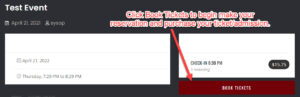
- The first page has several fields:
Contact information for the purchaser (required for all tickets)
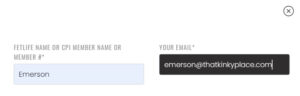

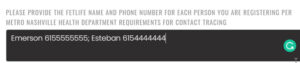
Contact information for each person you are buying tickets for (required by Metro Public Health Department for possible contact tracing) (required for all tickets)
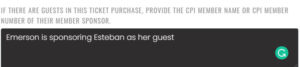
Note who the member sponsor is if there are any guests in this purchase. (required for guest tickets)
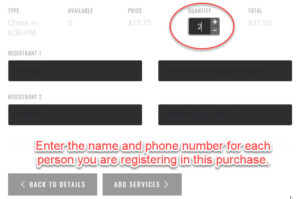
Click ‘Choose Tickets’ once all required fields have been completed. - Add the number of tickets you need to purchase for the check-in time you prefer. The booking system will add two ‘Registrant’ fields for each ticket you purchase. Add each attendee’s name and phone number. You can use legal name, scene name, FetLife name, CPI member name, or CPI member number in the name field – whatever you prefer. Once you have completed all of the fields on this page, click ‘Add Services’ to proceed to the next page.
- The ‘Services’ page has optional add-ons like membership renewals, CPI face masks, and donations, but the ‘Membership Status’ field is mandatory for all play party ticket purchases.
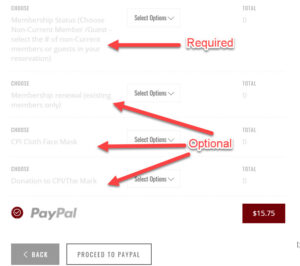
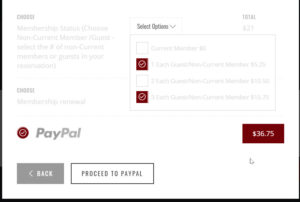
- Membership Status (required): If all of the tickets you are purchasing are for members with current (not expired) membership, then select only the first checkbox for ‘Current Member’, which adds $0.If your purchase includes any tickets for guests or CPI members with expired membership, then select the checkbox for the number of tickets you are purchasing for Guest/Non-Current Member.
**You can select ‘1 each’, ‘2 each’, ‘3 each’, or any combination.
**If you need to purchase tickets for 4 guests or non-current members, select both ‘1 each’ and ‘3 each’.
**If you are purchasing tickets for 5 guests or non-current members, select both 2 each’ and ‘3 each’.
- CPI members who wish to renew their membership can do so during the ticket purchase if they wish. This is an optional add-on service. If a non-current member chooses to renew their membership during the ticket purchase, they should select the options for ‘Current Member’ in the drop-down lists for ‘Membership Status’ and ‘Guests’.Note that new memberships may NOT be purchased using this option. This is only for renewals of existing memberships.
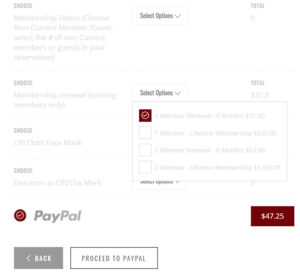
- Click ‘Proceed to PayPal’ when you are ready to pay for your tickets.
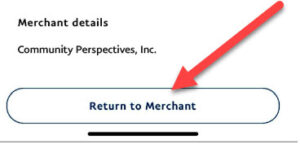
- After completing your purchase in PayPal, you will be presented with a button titled ‘Return to Merchant.’ You must click this button to complete your reservation and ticket purchase. This will complete your reservation and provide a link to download your ticket. This will generate an email with the ticket attached to each of the email addresses you provided for every registrant in step 5.